Returning to COME
COME Sign-In Help: Choose Your Situation
Pick the situation that matches yours. Each one takes you to the steps that fit.
Sign inOpen COME and sign in with your usual method.
Same phone as beforePick up where you left off.
New phone or browserSign in somewhere new.
Can't get inPage won't load, details rejected, signed out.
Need COME's helpWhat to check first and what to have ready.
The Normal Way In
- Open COME: tap the app icon if it's installed, or open COME in your browser.
- Choose sign in and use the method you signed up with.
- Complete any verification step shown.
- Open My Matches and check your earlier entries are there.
Quick Fixes Before Anything Else
| What's happening | Quick fix |
|---|---|
| Page won't load | Check another website opens; reload once |
| Details rejected | Check you're using the method you signed up with |
| Verification message not arriving | Wait for any resend timer; check the number or email shown |
| Signed in, but everything looks empty | Sign out and try your original sign-in method |
| Keeps signing you out | Leave private browsing; set phone date and time to automatic |
Keep Your Account to Yourself
Never share a password or verification code, even with someone who says they're helping you get back in.
Specific help
Go straight to the problem you have
Use a focused guide instead of changing several things at once.
COME Login Help: Password and OTP ChecksUse the login method linked to the account you normally use, then match the problem to password, OTP or connection checks.Find COME Customer Center and Account SupportPrepare the account context and exact error before asking support to review an account-specific problem.
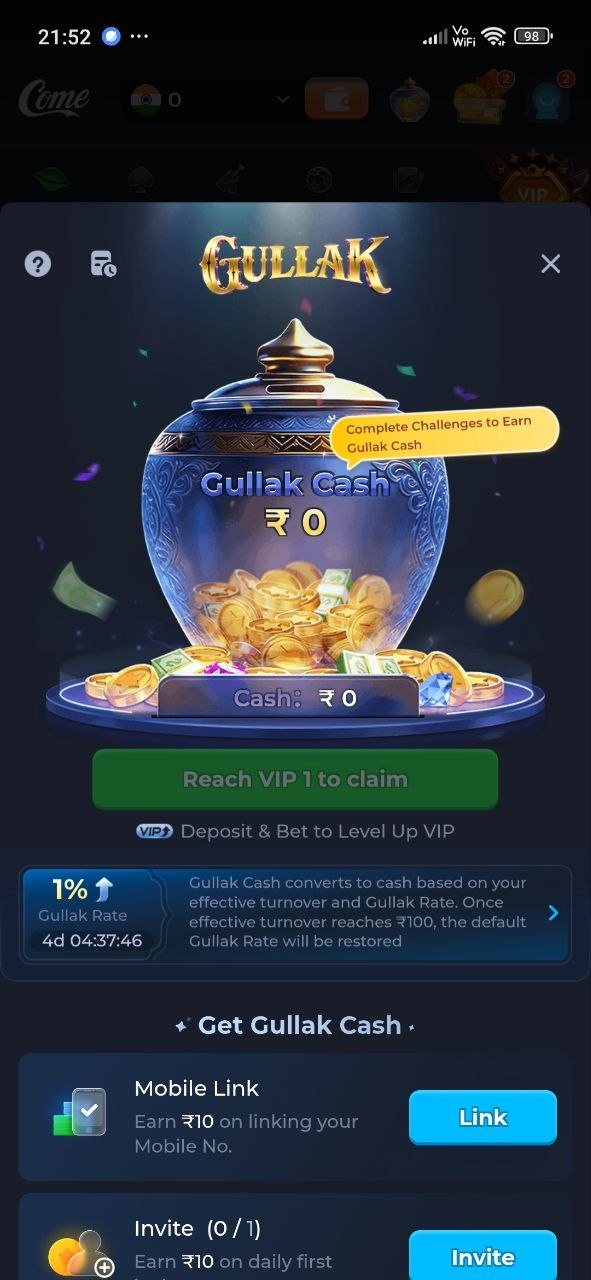
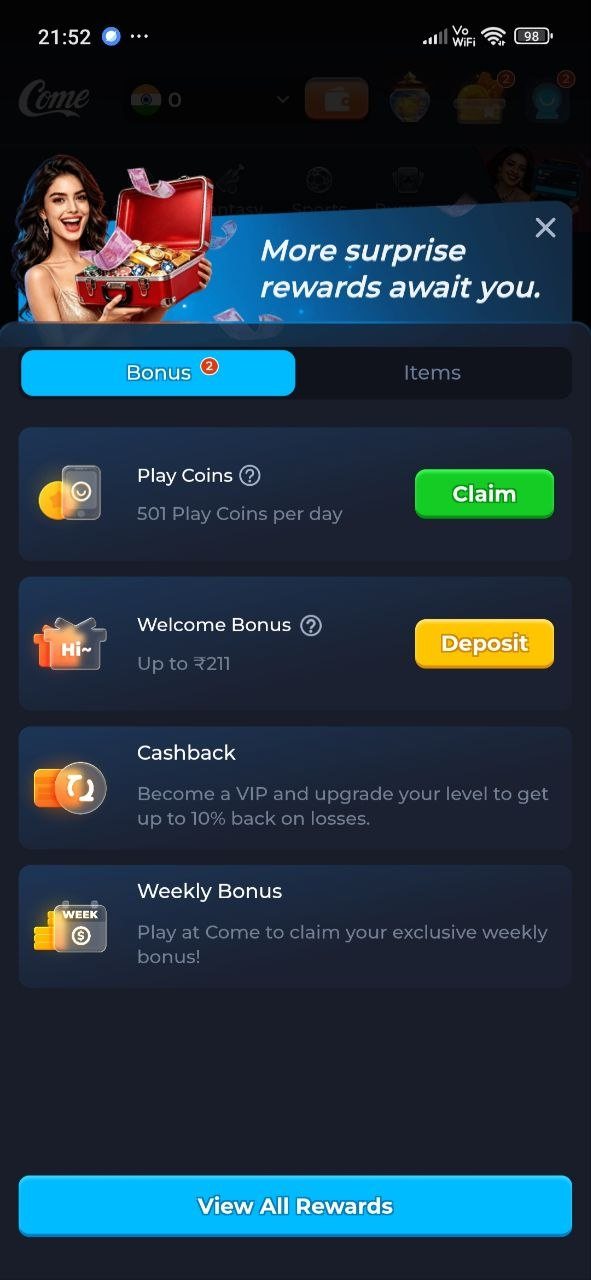
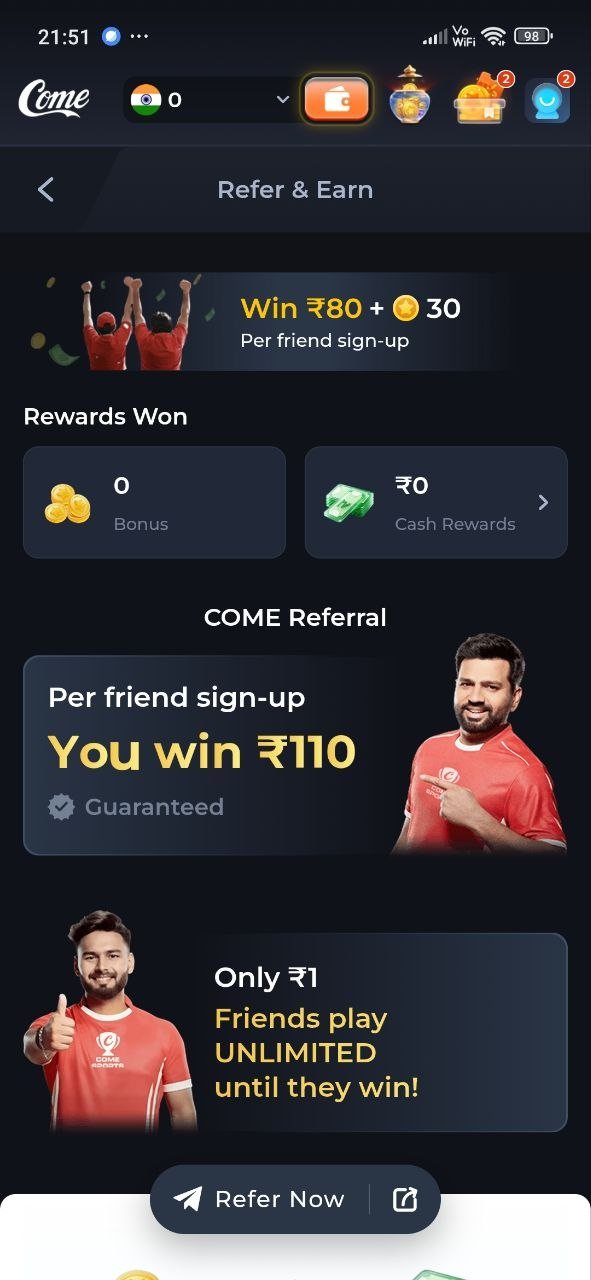
Real COME interface
Real COME rewards and account-adjacent screens
These supplied screens show rewards and referral areas that can sit alongside account access. Account recovery itself still belongs in the login and Customer Center flow.